
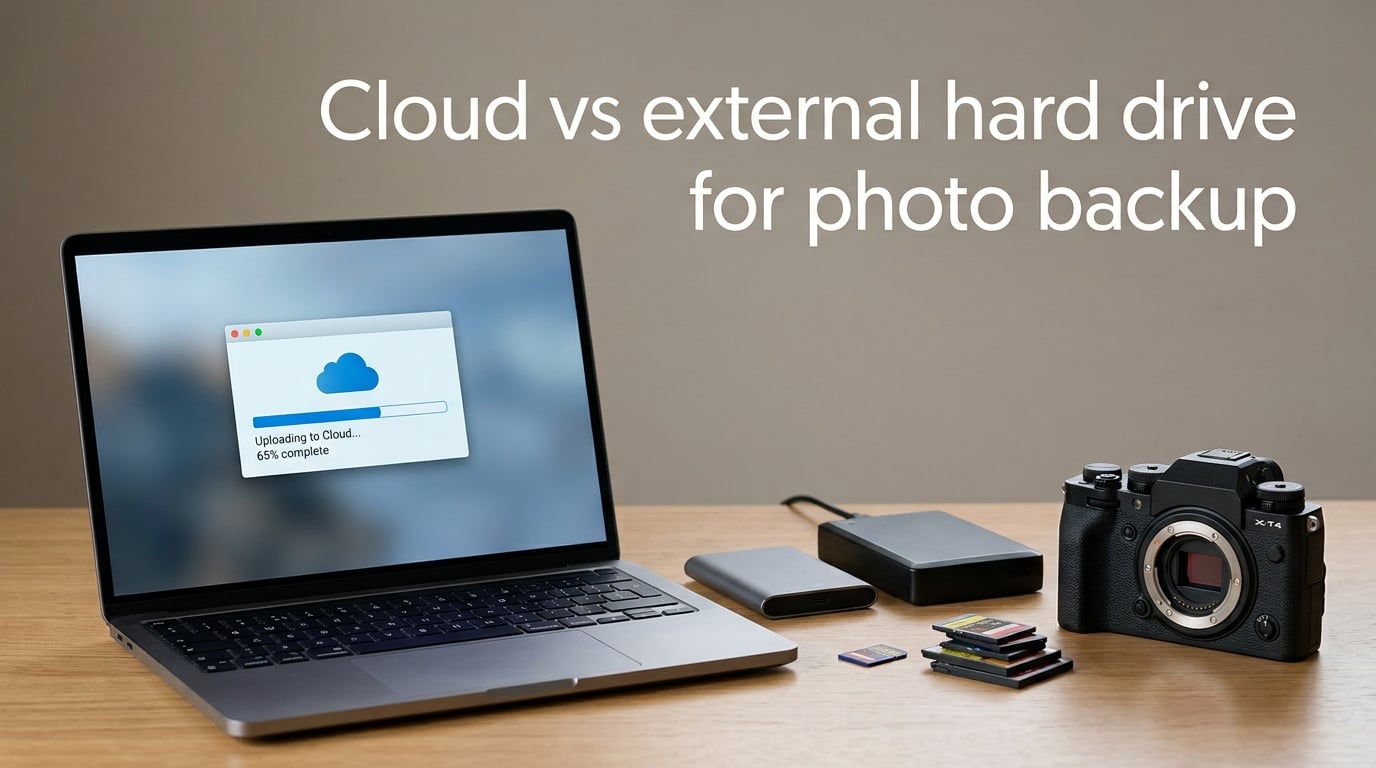
After a Saturday wedding shoot with 2,800 RAW frames, I realized I’d been treating my photo archive like a single shoebox in a closet. One drive, one copy, one prayer. The conversation about cloud vs external hard drive for photo backup is really a conversation about how to stop gambling with the only file copies you cannot reshoot. In our studio, we use both, and so do most professional photographers we know.
This guide is built on real input from our team, forum threads on r/photography and r/DataHoarder, and the practical trade-offs we walk clients through when they ask how to keep family portraits safe for a lifetime. There is no single right answer, but there is a clear winner when you combine the two.
Table of Contents
- Should I Use Cloud Storage or an External Hard Drive for Photo Backup?
- Cloud Storage vs External Hard Drive: The Basics
- Cloud Backup vs Cloud Storage: The Distinction Most People Miss
- What Is an External Hard Drive and How Does It Work for Photos?
- Cloud vs External Hard Drive: Side-by-Side Comparison
- 5-Year Cost Comparison: One-Time Drive vs Recurring Subscription
- Reliability and Failure Modes: What Happens When Things Break
- The 3-2-1 Backup Rule for Photographers
- How to Set Up a Hybrid Photo Backup: Step-by-Step
- Frequently Asked Questions
- Should I use cloud storage or external hard drive?
- What is the best way to store photos for the long term?
- What is the best backup drive for photos?
- What are the downsides of cloud backup?
- Is it better to use cloud storage or external hard drive?
- Is it a good idea to store photos on an external hard drive?
- The Verdict: Cloud and External Drives, Not Cloud or External Drives
Should I Use Cloud Storage or an External Hard Drive for Photo Backup?
For most photographers, the answer is both. Cloud storage keeps your photos on remote servers you reach over the internet, while an external hard drive is a physical device you plug into your computer for local, offline storage. Cloud gives you offsite safety and remote access, but costs more over time and depends on your internet speed. An external hard drive is faster, cheaper over five years, and works without Wi-Fi, but it can fail, get stolen, or sit next to a flooded laptop. The reliable answer is a hybrid setup: a fast external SSD for working files and a cloud backup service for offsite protection.
If you have only one of the two right now, prioritize the option that protects against your biggest risk. Burglary or fire means cloud matters most. A full hard drive or slow upload means an external SSD matters most.
Cloud Storage vs External Hard Drive: The Basics
Cloud storage means your photos live on servers run by a third party – Google Drive, iCloud, Dropbox, Backblaze, OneDrive, pCloud. You upload over the internet, and you can download or stream those files from any device with a login. You do not own the hardware, you rent the storage.
An external hard drive is a physical box, usually spinning disk (HDD) or solid-state flash memory (SSD), that you connect to your computer through USB-C or Thunderbolt. You own the hardware, the files live where you put them, and nothing happens unless you plug it in and copy the files yourself.
Both have a place. Cloud is unbeatable for offsite protection and remote access. An external hard drive is unbeatable for speed, capacity per dollar, and working without an internet connection. The mistake is treating them as competitors when they solve different problems.
What “Offsite” Actually Means
Offsite simply means your backup copy is in a different physical location than your working files. A second drive on the same desk is not offsite. A drive in your parents’ house, a fireproof safe across town, or a server in another state is offsite. The 3-2-1 backup rule, which we cover later, treats this distinction as the whole point.
Cloud Backup vs Cloud Storage: The Distinction Most People Miss
This is the single most important distinction in the entire cloud vs external hard drive conversation, and it is the source of most painful data-loss stories we hear from clients. Cloud storage and cloud backup are not the same thing.
Cloud storage is a sync folder. You put a file in Dropbox, Google Drive, iCloud, or OneDrive, and the same file appears on every device you sign in to. If you delete the file on your laptop, it disappears from the cloud within minutes. If ransomware encrypts your laptop, it encrypts your synced cloud folder too. This is what r/TechNook and r/GenX users mean when they say “the cloud deleted my photos” – it was actually a sync folder that mirrored their mistake.
Cloud backup is a separate service – Backblaze, IDrive, Carbonite – that keeps historical copies of every version of every file for weeks or months. If you delete a file or ransomware hits, the backup service still has the original. You can roll back to last Tuesday.
For true photo protection, a sync service is not a backup. It is a mirror. A true backup service holds old versions, keeps files even after you delete them, and lives in a separate system that ransomware cannot reach.
What Is an External Hard Drive and How Does It Work for Photos?
An external hard drive is any storage device that lives outside your computer and connects by cable. There are two main types: HDDs (hard disk drives) with spinning platters, and SSDs (solid-state drives) with flash memory and no moving parts.
HDDs are cheaper per terabyte and ideal for archival storage of a finished RAW photo library. A 4TB or 8TB HDD costs less than an equivalent SSD and is the right choice when you store photos and rarely touch them. The trade-off is that HDDs are slower, heavier, more fragile, and have a finite lifespan measured in read/write cycles.
SSDs are faster, smaller, lighter, and resistant to drops because there are no moving parts. They cost more per terabyte but speed up your editing workflow dramatically when you load a Lightroom catalog or scroll a 1TB RAW shoot. For a working photographer, an external SSD as a scratch disk is almost a necessity.
Capacity You Actually Need
A typical wedding shoot runs 30 to 80GB in RAW files. A family portrait session is usually 5 to 15GB. If you shoot 30 sessions a year at an average of 25GB, you are adding roughly 750GB per year, or about 4TB every five years. Plan capacity around your realistic growth, not your current library.
Hardware Encryption and Physical Security
Many modern external drives include 256-bit AES hardware encryption. The data on the drive is unreadable without the password, even if someone steals the box. For a working photographer carrying client work on the road, an encrypted SSD protects you if your bag gets stolen. Drives like those from Apricorn and SecureData are built for this exact use case.
Cloud vs External Hard Drive: Side-by-Side Comparison
Here is how the two options stack up across the seven factors that matter most for photo archives. Use this table to think through your own priorities.
| Factor | Cloud Storage or Backup | External Hard Drive |
|---|---|---|
| Upfront cost | None – subscription | One-time hardware purchase |
| Long-term cost (5+ years) | Recurring, adds up | Pay once, own it |
| Transfer speed | Limited by upload bandwidth | USB-C and Thunderbolt are very fast |
| Offsite protection | Built in | Only if you move it offsite |
| Access from anywhere | Any device with login | Only where the drive is plugged in |
| Risk of accidental deletion | Sync folders mirror deletes; backups do not | Manual – deletion is local |
| Recovery from ransomware | True backup services keep old versions | Drive disconnected = safe; connected = vulnerable |
| Hardware failure risk | Provider handles it | You handle it |
| Privacy and control | Provider can technically access files | Only you can access files |
Notice that no row is a clean win for either side. Cloud is better at offsite and remote access. Drives are better at speed and long-term cost. That is why we keep coming back to the same answer: use both.
5-Year Cost Comparison: One-Time Drive vs Recurring Subscription
The cost math is where cloud backup vs external hard drive stops being a tie. Take a 4TB photo archive that grows by about 800GB per year, so you need roughly 8TB of total storage by year five.
An 8TB external SSD is a single purchase. You own it, you plug it in, you are done. That hardware cost is a one-time line item that does not recur. Compare that to a typical unlimited photo backup subscription that runs year after year – by year three you have already spent more than the hardware, and the subscription is still running in year five.
Cloud storage is not a bad deal in year one. The problem shows up over time, the same way a gym membership is cheaper than home equipment for the first few months and much more expensive over years.
There is one important caveat. Cloud backup protects you from a single point of failure – a fire, a flood, a burglary, a dropped drive. If you only own one external drive and it dies, you have no safety net. Spend the difference once, on a second drive stored somewhere else, and the cost question becomes settled.
Reliability and Failure Modes: What Happens When Things Break
Both cloud and external drives fail. The question is how each fails and what your recovery path looks like.
Hard Drive Failure
Hard drives do not last forever. A spinning-platter HDD typically has a 3 to 5 year service life under normal use. SSDs last longer but are not immortal. Every drive fails eventually. The forum users on r/photography and r/GenX are full of stories like “her hard drive crashed and I recovered maybe 1 to 2 percent of all those precious pictures.” That is the lived reality of relying on a single drive.
If a drive fails and you have no other copy, your recovery options are limited. Professional data recovery services exist and can sometimes pull files from dead drives, but the cost is often several hundred to several thousand dollars, and there is no guarantee. We have seen recoveries work, and we have seen drives that were simply gone.
Sync Folders That Delete Your Files
The single biggest data-loss story in the r/iCloud and r/TechNook threads is the sync folder that deletes files because you deleted files. If your cloud setup is a sync service like iCloud Photos, Google Drive, or Dropbox, deleting a photo on your laptop deletes it across all your synced devices, often within seconds.
Some sync services keep deleted files in a trash folder for 30 days, which is helpful. Others do not. The r/DataHoarder community consensus is clear: a sync service is not a backup.
Ransomware
If your laptop gets encrypted by ransomware, a sync folder will dutifully encrypt your cloud copy too. A true backup service that keeps historical snapshots, or an external drive that was disconnected during the attack, will save you.
Theft, Fire, and Flood
An external drive in your desk drawer is gone the moment your apartment floods or your office burns down. This is the failure mode cloud is built for. The 3-2-1 rule exists because no single location is safe.
The 3-2-1 Backup Rule for Photographers
The 3-2-1 rule is the most-recommended framework in every forum and photographer blog we reviewed. It is simple, and it works.
- 3 copies of your photo library: the working files on your computer plus two backups.
- 2 different media types: for example, internal SSD plus external SSD plus cloud. Mixing media types means a single failure mode cannot take out both copies.
- 1 offsite copy: somewhere physically separate from your studio. Cloud counts as offsite, as does a drive in a safe at a relative’s house.
For a working photographer, the practical 3-2-1 setup looks like this:
- Copy 1: working files on your editing computer, on a fast internal SSD.
- Copy 2: external SSD plugged in for the current month’s shoots, used as your Lightroom scratch disk and daily backup target.
- Copy 3: cloud backup service running continuously in the background, holding every version of every file for at least 30 days.
Some photographers also keep a fourth copy on a slow HDD stored in a fireproof safe or offsite location. Tim Shields, a wedding photographer we follow, runs RAID 5 across multiple drives and still adds cloud backup on top. The principle is the same: redundancy is cheap, lost photos are not.
How to Set Up a Hybrid Photo Backup: Step-by-Step
Here is the exact setup our studio uses and recommends to clients. It works for Mac and Windows and does not require any specialized IT skills.
Step 1: Pick your working drive. Use a fast external SSD – 1TB or 2TB is a good starting size – as your active editing and scratch disk. This is where finished edits live during the project. Brands photographers we know trust include Samsung T-series and SanDisk Extreme, but the specific model matters less than the speed and capacity.
Step 2: Add a true backup service. Sign up for a real cloud backup service that retains file versions – Backblaze Personal Backup or IDrive are the two we see working photographers use most. Install the app, point it at your photo library, and let it run. The first full upload will take days; after that it runs in the background.
Step 3: Schedule a weekly archive sync. Once a month, copy your finished RAW and JPEG libraries to a large external HDD – 4TB, 8TB, or larger – and store it somewhere other than your studio. A closet at a relative’s house, a fireproof safe at your office, or a bank safe deposit box all work.
Step 4: Verify your backups once a quarter. A backup you have never tested is not a backup. Pick a random shoot, open it from your cloud backup, and confirm the files open. Plug in your offsite HDD and check a folder. Ten minutes of verification once a quarter saves years of regret.
Step 5: Replace drives on a schedule. Every 4 to 5 years, retire your oldest HDD and migrate the archive to a new one. Drives do not fail loudly – they fail when you need them most.
This setup costs less than a year of typical cloud subscriptions over five years and protects you against every common failure mode: drive crash, laptop theft, fire, ransomware, and accidental deletion.
Frequently Asked Questions
Should I use cloud storage or external hard drive?
For most photographers, both. Cloud gives you offsite protection and remote access, while an external hard drive is faster, cheaper over five years, and works without internet. The safest answer is a hybrid 3-2-1 setup: an external SSD for working files, a large external HDD for monthly archives, and a true cloud backup service for offsite safety.
What is the best way to store photos for the long term?
The 3-2-1 backup rule. Keep three copies of your library on two different types of media, with one copy stored offsite. In practice that means your editing drive, an external HDD archive, and a cloud backup service. Verify backups quarterly and replace drives every four to five years before they fail.
What is the best backup drive for photos?
There is no single best drive, but the right choice depends on use. For working files and editing, pick a fast external SSD with USB-C or Thunderbolt, at least 1TB. For long-term archival of a RAW photo library, pick a high-capacity external HDD, 4TB or larger. For travel, choose a small rugged SSD with hardware encryption.
What are the downsides of cloud backup?
Cloud backup requires fast upload bandwidth, costs more over multi-year horizons than a one-time drive purchase, and depends on a third party to keep your files safe. Initial uploads of large RAW libraries can take days. Sync-style cloud services (iCloud, Google Drive, Dropbox) can also mirror accidental deletions, which is why true backup services with version history are preferred for photo archives.
Is it better to use cloud storage or external hard drive?
Neither option alone is better for every photographer. External hard drives win on speed, long-term cost, and offline access. Cloud wins on offsite protection, remote access, and protection against theft or natural disaster. Combining both, following the 3-2-1 rule, is the most reliable answer for a photo archive.
Is it a good idea to store photos on an external hard drive?
Yes, with two caveats. An external hard drive is an excellent primary or secondary copy of a photo library because it is fast, private, and inexpensive per terabyte. The caveat is that any single drive can fail, get stolen, or be destroyed in a fire. Always pair an external drive with an offsite copy, either a second drive in another location or a cloud backup service.
The Verdict: Cloud and External Drives, Not Cloud or External Drives
After years of running a busy portrait and family photography studio, the cloud vs external hard drive debate has stopped being a debate for us. Both belong in your photo backup plan, and trying to choose one over the other is how archives disappear.
Buy a fast external SSD for working files. Sign up for a real cloud backup service that holds historical versions. Add a large external HDD for monthly archive copies stored somewhere other than your studio. Verify the backups once a quarter. Replace drives on a four to five year rotation. That is the routine that protects every photo in your archive, and it is the answer we give every client who asks.
If you take one thing from this guide, take this: a single copy of your photos is a risk you do not need to take. Three copies, two media types, one offsite, and your library will outlive every device it lives on.