
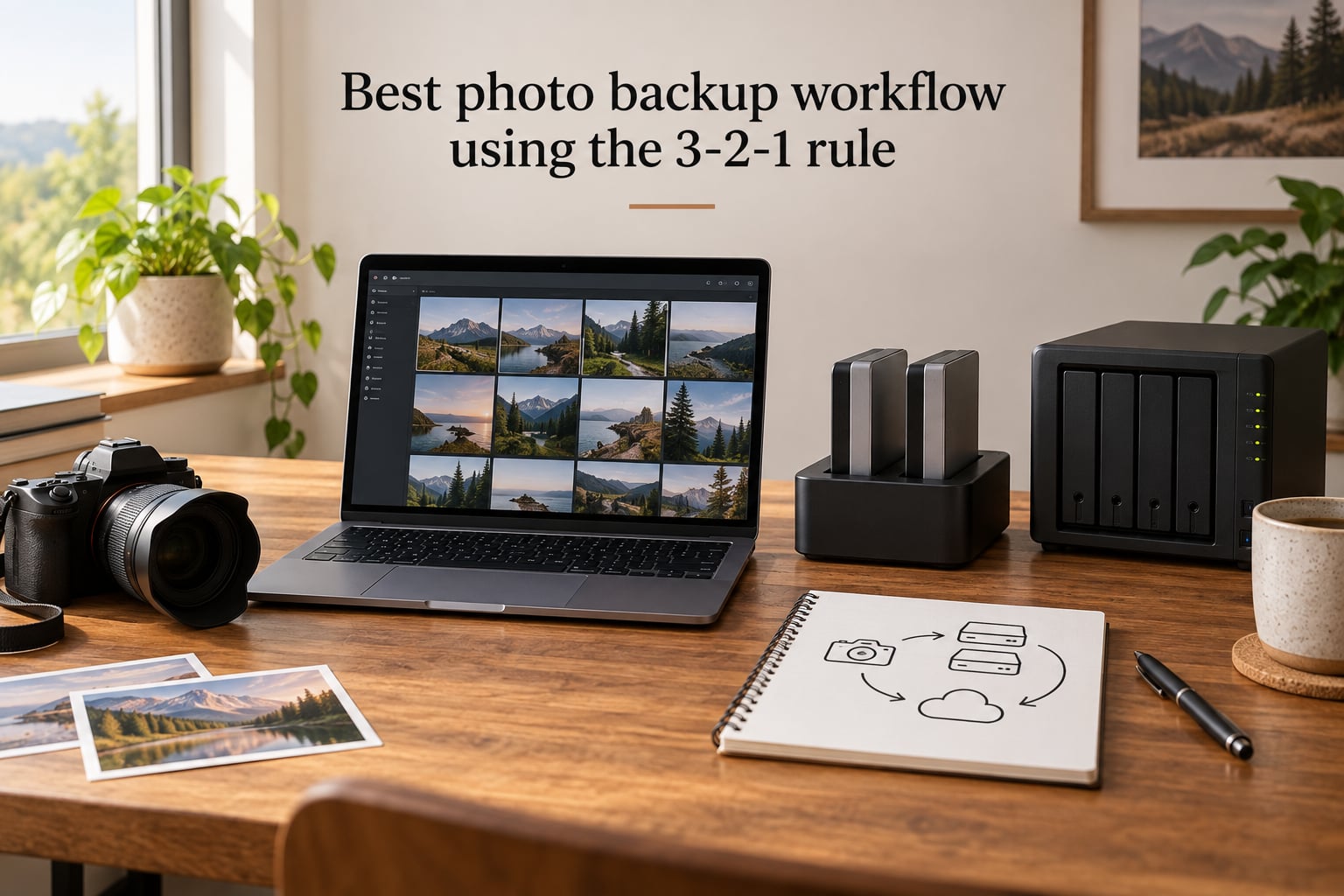
I have watched too many photographers learn the hard way that a single hard drive is not a backup plan. In our studio, we rebuilt one wedding photographer’s archive from scratch after a house fire took her main drive and her offsite drive lived in the same bag. That is why I write about the 3-2-1 backup rule for photos — it is the simplest framework that actually prevents that kind of loss.
In this guide, I will walk you through the exact 3-2-1 backup rule photo workflow our team uses, the gear and software choices behind it, and the modern updates (including the 3-2-1-1-0 rule) that protect your images against ransomware, drive failure, and the kind of bad luck that does not warn you first.
Quick Answer: What is the 3-2-1 backup rule for photos?
The 3-2-1 backup rule for photos means keeping 3 copies of your photo library, stored on 2 different types of media, with 1 copy kept offsite in a different physical location. This combination eliminates single points of failure so that no single event — drive failure, theft, fire, or ransomware — can wipe out your entire archive.
Table of Contents
- Why a Photo Backup Workflow Matters in 2026
- What Is the 3-2-1 Backup Rule for Photos?
- Breaking Down the Storage Jargon You Need to Know
- Choosing Your Media: HDD, SSD, NAS, and Cloud Compared
- A Complete 3-2-1 Photo Backup Workflow Step by Step
- Alternative Budget-Friendly 3-2-1 Workflows
- Travel and On-Location Backup Tips for Photographers
- Is the 3-2-1 Rule Outdated in 2026? The 3-2-1-1-0 Variant
- Encryption, Ransomware, and Cloud Privacy Considerations
- Best Practices and Top Tips for a Bulletproof Backup
- Frequently Asked Questions
- Your Next Step Toward a Safer Photo Archive
Why a Photo Backup Workflow Matters in 2026
Hard drives fail. It is not a question of if, it is a question of when. Backblaze publishes annual drive stats that consistently show 1-2% of consumer drives fail each year, and the average lifespan of a working hard drive sits around 3-5 years before mechanical wear catches up with it. SSDs last longer in many cases but they fail too, usually without warning.
For photographers, the failure modes are wider than a single drive dying. I have seen:
- Memory cards corrupting mid-shoot after a card reader hiccup.
- A Lightroom catalog that would not open because the working drive had bad sectors.
- A NAS that took the family photos and the client archive with it during a firmware update gone wrong.
- A studio that lost everything when a coffee shop’s wifi pushed ransomware onto a synced laptop.
The cost of losing the images is not just the storage drive. It is the wedding you cannot re-shoot, the family reunion nobody else photographed, the commercial job that puts your business at risk. A solid 3-2-1 backup rule photo workflow costs a fraction of one paid shoot and removes nearly all of that risk.
What Is the 3-2-1 Backup Rule for Photos?
The 3-2-1 backup rule is a simple, time-tested framework originally popularized by photographer Peter Krogh and now standard in the IT world. It applies to any data, but it is especially relevant for photographers because photo libraries grow fast, are usually irreplaceable, and are vulnerable to drive failure at scale.
Here is how the rule breaks down:
- 3 copies of your data. One primary “working” copy you actively edit from, plus two backups. The two backups are the safety net — they exist so that any single failure still leaves you with at least two surviving copies.
- 2 different types of media. Your copies should not all live on the same kind of device. Pair an internal SSD with an external HDD, or pair a NAS with a cloud provider. Mixing media types protects you from a class-wide failure (for example, a bad batch of drives from the same manufacturer).
- 1 copy offsite. At least one backup must live in a physically separate location from your main copy. That means a different building — a relative’s house, a bank deposit box, or a cloud server in another city. Offsite is what saves you from fire, flood, and theft.
The 3-2-1 backup rule photo workflow works because it kills single points of failure. If your main drive dies, you still have two copies. If a flood hits your studio, you still have an offsite copy. If ransomware encrypts your laptop and connected drives, the offsite copy is unaffected because it was offline or in a separate account.
Breaking Down the Storage Jargon You Need to Know
Before we get into building your workflow, let’s define the words you’ll see in every backup article and product page. These are the building blocks of any 3-2-1 backup strategy.
HDD (Hard Disk Drive). The classic spinning-platter drive. Cheap per terabyte, slow for random reads, and best suited for large sequential backups. Most photographers still use HDDs for bulk archival.
SSD (Solid State Drive). No moving parts, much faster, more shock-resistant, and more expensive per terabyte. Great as a working drive and as a fast backup destination for active projects.
NAS (Network Attached Storage). A small server with multiple drives that lives on your network. Most NAS devices support RAID, which mirrors data across drives so that one drive can fail without losing anything. A NAS is not a backup on its own (more on that below), but it is one of the two “different media types” most photographers rely on.
RAID (Redundant Array of Independent Disks). A way to combine multiple drives so that data is mirrored or striped across them. RAID 1 mirrors two drives, RAID 5 tolerates one drive failure across three or more, RAID 6 tolerates two. RAID protects against hardware failure, not against fire, ransomware, or accidental deletion. RAID is NOT a backup. Many forum users have learned this the hard way when a single bad command wiped an entire RAID array.
Cloud storage. Your files live on servers run by someone else — Backblaze, Amazon Photos, Google One, OneDrive, Dropbox, iDrive, and so on. Cloud is the easiest way to satisfy the “1 offsite” requirement because the provider handles the offsite part for you.
Cold storage / optical. Blu-ray M-Discs and LTO tapes are write-once, removable media that you can store in a drawer, a safe, or a deposit box. They survive ransomware and most disasters, but they are slow and cumbersome. Best used as an optional fourth layer for very long-term archives.
Choosing Your Media: HDD, SSD, NAS, and Cloud Compared
You do not need every type of device in the list above. You need a smart combination that fits your library size, budget, and how fast you shoot.
- Working drive: An internal or external SSD for the catalog and current project files. Speed matters here because you are reading and writing constantly.
- Local backup: An external HDD for full-archive clones. Cheap per terabyte, slow but reliable.
- Network backup: A NAS for second-location redundancy inside your home or studio. Synology and QNAP are the two brands most photographers pick.
- Offsite backup: Cloud storage for the offsite copy. Backblaze Personal is popular because it allows unlimited storage for a flat annual fee.
- Optional cold layer: A Blu-ray M-Disc or external HDD that lives at a relative’s house, rotated every few weeks.
If you only have a small library (under 1 TB) and a tight budget, you can run a 3-2-1 setup with one SSD, one HDD, and one cloud account. If you shoot weddings commercially with 10 TB+ per year, you will want a NAS plus an offsite HDD rotation plus cloud. The rule stays the same — only the gear changes.
A Complete 3-2-1 Photo Backup Workflow Step by Step
This is the workflow our studio runs. It is a 3-2-1-1 variation that adds one offline copy for ransomware protection, but the core 3-2-1 logic is exactly the same.
Step 1 — Import and verify on the working SSD. I import RAW files from both memory cards into a dedicated working SSD, run a checksum or visual spot check, and only mark the shoot “done” once I have opened every file. Lightroom’s “Verify Sync Data” plus a checksum tool gives a second confirmation.
Step 2 — Mirror to a local external HDD. Carbon Copy Cloner on Mac or a scheduled robocopy/SyncBack task on Windows handles this. The local HDD is the first backup copy. It is on a different media type (HDD vs SSD) and lives in the same room as the working drive.
Step 3 — Sync to the NAS on the network. A Synology NAS running Hyper Backup or Active Backup pulls from the working SSD overnight. The NAS is the second backup copy on a third media type (RAID array). It satisfies the “2 different media types” requirement and gives an automatic restore point if the local backup fails.
Step 4 — Push to offsite cloud. Backblaze Personal runs continuously in the background and uploads new files automatically. Once a shoot lands on the working SSD, it makes its way to Backblaze within a day or two, depending on bandwidth. That offsite copy is the “1 offsite” piece of the rule.
Step 5 — Rotate an HDD offsite monthly (optional). For ransomware insurance, I keep an additional external HDD in a fireproof safe at a family member’s house. Once a month I swap it with the one in the studio. That drive is fully offline and stays at the offsite location, so even a worst-case studio breach cannot touch it.
Total time investment for an average wedding shoot (about 80 GB of RAW files) is roughly 30-45 minutes of import and verification, with the rest running in the background.
Alternative Budget-Friendly 3-2-1 Workflows
You do not need a NAS or a paid cloud plan to run a strong 3-2-1 backup rule photo workflow. Here are three tiers that scale with your library and budget.
Hobbyist tier (under $200 setup). Use your laptop’s internal drive as the working copy. Clone the library to a single external HDD using free software (Backblaze’s local backup is included with their cloud plan). Use Backblaze Personal’s unlimited cloud upload (around $99/year) as the offsite copy. This is the cheapest credible 3-2-1 setup and it works for libraries up to about 4 TB.
Enthusiast tier ($500-$1000 setup). Add a dedicated NAS (Synology DS223 or QNAP TS-233 plus two NAS HDDs) and run scheduled backups to it from your working drive. Pair this with Backblaze or iDrive for offsite. Keep one external HDD at a relative’s house and rotate it monthly. This is the most popular setup for serious amateurs and family archivists.
Professional tier ($1500+ setup). Stack the enthusiast tier with a second NAS at a separate physical location (your studio plus a deposit box or co-working space). Use Backblaze B2 or Wasabi for redundant offsite cloud. Add an ioSafe fireproof/waterproof NAS or a Blu-ray M-Disc archive for the most critical client work. Most wedding photographers run a variant of this.
Across all three tiers the 3-2-1 logic is identical. What changes is how many drives, how many vendors, and how automated the workflow is. Automation matters more than gear — a manual workflow is the workflow you will eventually skip.
Travel and On-Location Backup Tips for Photographers
If you shoot on location — weddings, events, travel, wildlife — your backup workflow has to work in a hotel room, not just in a tidy studio. Here is what working photographers actually do.
Dual card slot in-camera. Most modern cameras write RAW files to two cards simultaneously. That is your first line of defense. If one card corrupts mid-shoot, the other card still has every frame. Set this up the day before every job and verify it is recording.
On-location SSD dump. After every shoot day, copy both cards to a portable SSD (Samsung T7 or SanDisk Extreme Pro). Keep the SSD in a different bag than the cards. If a card fails overnight, you still have a verified copy on the SSD.
Hotel-room backup routine. Bring a small travel dock or a USB hub so you can charge the camera, plug in the SSD, and run a checksum on the day’s files before bed. Twenty minutes of verification is cheap insurance.
Returning home: full archive sync. The moment you walk in the door with the SSD, plug it into your studio setup and run the full 3-2-1 workflow — local clone, NAS sync, cloud push. Do not skip this step just because you are tired. Drives fail, and tired-you is exactly who forgets to back up.
Is the 3-2-1 Rule Outdated in 2026? The 3-2-1-1-0 Variant
Short answer: no. The 3-2-1 rule is not outdated, but NIST and the wider IT world have added a modern update called the 3-2-1-1-0 rule to handle ransomware and cloud outages. Photographers who care about archive integrity should at least understand it.
The 3-2-1-1-0 rule adds two more letters:
- 1 immutable or offline copy. At least one of your backups must be immutable (cannot be changed or encrypted by ransomware for a set window) or fully offline. A monthly-rotated HDD in a safe at a relative’s house is the simplest offline copy. Cloud providers like Backblaze B2 and Wasabi offer object lock features for immutable cloud copies.
- 0 errors after verification. You must test your backups, not just create them. A backup that does not restore is not a backup. Run a test restore once per quarter, even if it is just a random folder from the cloud.
Ransomware is the reason this update matters. Modern ransomware scans for connected network drives and cloud sync folders, then encrypts everything it can reach. If your only “offsite” copy is a continuously-synced cloud folder, the encryption can propagate there too. An immutable or fully offline copy breaks that chain.
Encryption, Ransomware, and Cloud Privacy Considerations
Forum users raise three cloud concerns over and over: privacy, encryption, and the risk of cloud-only backups. Here is how I handle each.
Encrypt before upload. Tools like Cryptomator (free) and Boxcryptor create an encrypted vault inside your cloud folder. The provider sees scrambled data, not your RAW files. This protects against both provider-side scanning and most data breach scenarios.
EXIF and GPS privacy. Cloud photos often carry full EXIF data including GPS coordinates. If you shoot at home, at client sites, or near schools, that is sensitive. Strip EXIF before upload, or use a cloud tool that supports selective metadata. Several photographers strip GPS by default for privacy.
Provider access policies. Read the fine print. Some providers reserve the right to scan your data, train models on it, or hand it to authorities on request. If that bothers you, self-host on a NAS at a relative’s house instead, or use end-to-end encrypted providers.
Cloud-only is not enough. Cloud providers have outages. Accounts get locked. Sometimes files are deleted by accident and never recovered. Always keep at least one local backup in addition to the cloud copy. The 3-2-1 backup rule photo workflow is designed exactly to handle this.
Best Practices and Top Tips for a Bulletproof Backup
These are the rules our team treats as non-negotiable. Skipping any of them is how backups quietly stop working.
- Test your backups. Pull a random folder from the cloud and from the NAS once a quarter. Open a file. Confirm it is intact. A backup you have never restored from is a hope, not a backup.
- Replace drives every 3-5 years. Mechanical drives wear out. SSDs wear out at the cell level. Don’t wait for failure — rotate drives on a schedule.
- Back up the Lightroom catalog too. The catalog is the database that points to your photos. Losing the photos is bad; losing the catalog with the edits is worse. Include it in your backup scope, not just the RAW files.
- Automate everything you can. Manual workflows fail. Set Carbon Copy Cloner, Time Machine, Hyper Backup, or your cloud client to run automatically. The best backup is the one you don’t have to remember.
- Document your workflow. Write down which drive is which, where the offsite copy lives, and how to restore. If something happens to you, your team or family needs to recover the archive without you.
- Verify, don’t trust. After every major shoot, spot-check that the files made it to the NAS and to the cloud. Checksums, file counts, or just opening a few random photos.
Frequently Asked Questions
What is the 3-2-1 backup rule for photos?
The 3-2-1 backup rule for photos means keeping three copies of your photo library, stored on two different types of media, with one copy kept offsite in a different physical location. It is the standard framework photographers use to protect images against drive failure, theft, fire, and accidental deletion.
How does the 3-2-1 backup rule work?
It works by removing single points of failure. You keep one working copy plus two backups. The two backups live on different kinds of devices, and at least one backup is stored in a separate physical location. If any one drive dies, or your studio is damaged, or ransomware encrypts your main machine, your photos remain safe on the unaffected copies.
Is a 3-2-1 backup outdated?
No. The 3-2-1 backup rule is not outdated, but NIST and IT professionals have added a modern update called the 3-2-1-1-0 rule. The extra 1 means one immutable or offline copy that ransomware cannot reach, and the 0 means zero errors after verification. For most photographers the classic 3-2-1 rule is still very effective, and the 3-2-1-1-0 variant is a smart upgrade for ransomware protection.
What is the 3-2-1-1-0 rule for backing up data?
The 3-2-1-1-0 rule is the modern version of the classic 3-2-1 backup rule. It keeps 3 copies on 2 different media with 1 offsite, then adds 1 immutable or fully offline copy that cannot be encrypted by ransomware, and 0 errors confirmed by actually testing your restores. It is the current NIST recommendation for resilient data protection.
What is the 20 60 20 rule in photography?
The 20 60 20 rule in photography refers to light metering: 18 percent middle gray reflects about 18 percent of light, but for scene balance photographers often think in terms of roughly 20 percent highlights, 60 percent midtones, and 20 percent shadows as a guideline for well-exposed images. It is unrelated to backup strategy and is a composition and exposure concept instead.
What is the 3/2/1 rule when backing up data?
The 3/2/1 rule when backing up data is the same as the 3-2-1 backup rule: keep three copies of your data, store them on two different types of media, and keep at least one copy offsite in a separate physical location. It applies to any kind of data including photos, videos, documents, and business files, and it is the simplest reliable framework for surviving hardware failure and disasters.
Your Next Step Toward a Safer Photo Archive
The 3-2-1 backup rule photo workflow is not fancy and it is not new, which is exactly why it works. Three copies on two different media with one offsite covers nearly every disaster a photographer is likely to face. The modern 3-2-1-1-0 update adds ransomware insurance on top.
If you only do one thing this week, set up an automated cloud backup — Backblaze Personal, iDrive, or the cloud sync built into your NAS. That single step satisfies the offsite rule and dramatically reduces your risk. From there, add a scheduled local clone, then layer in an offline drive rotation if you handle client work.
Set it up once, automate it, test it once a quarter, and your photo archive will outlive every drive you own.